Get started with the S2 Module
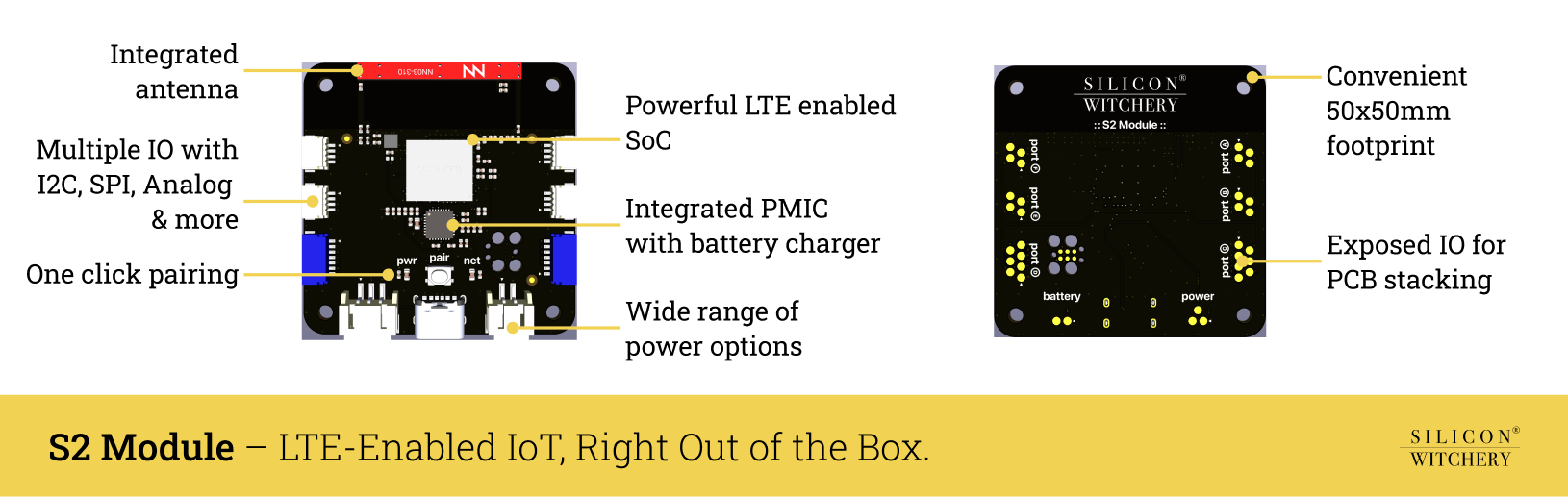
This guide takes a new S2 Module from the box to running its first line of Lua over cellular. It takes about ten minutes.
Lua reference CLI reference Example code
Contents
- What you need
- Step 1: Install the Superstack CLI
- Step 2: Log in
- Step 3: Create a fleet
- Step 4: Find the IMEI
- Step 5: Power on the S2
- Step 6: Pair the S2 with your fleet
- Step 7: Run hello world
- Set up with an AI agent
- Post a temperature to your server
- Turn on a motor from your project
- Next steps
What you need
- An S2 Module.
- A USB-C cable, and a computer or USB phone charger to plug it into.
- A computer running macOS, Windows or Linux.
- A GitHub or GitLab account, to log in to Superstack.
You don’t need a SIM card or a data plan. Every S2 has both built in, with starter credit for its first fleet.
Step 1: Install the Superstack CLI
You set up and program the S2 with superstack, a command line tool. Open a terminal and install it.
On macOS:
brew install --cask siliconwitchery/tap/superstack
On Windows, with Scoop and Git installed:
scoop bucket add siliconwitchery https://github.com/siliconwitchery/scoop-bucket
scoop install superstack
On Linux, follow the CLI install instructions.
Check that it installed:
superstack version
The CLI prints its version number.
Step 2: Log in
Run:
superstack login githubUse
gitlabinstead ofgithubto log in with GitLab.The CLI prints a one-time code:
Copy your one-time code: WDJB-MJHT Then enter it at https://github.com/login/device Press enter to open the browser.- Press Enter. Your browser opens the login page.
- Enter the code in the browser, and approve the login.
- Return to the terminal. The CLI prints
Logged in asand your email address.
Step 3: Create a fleet
A fleet is a group of devices with its own members, fleet keys and credit. Your S2 must belong to a fleet before it can run code.
superstack fleet create "My first fleet"
The CLI prints the fleet’s id:
Created fleet "My first fleet" with id 12.
Write down the id. The next steps call it <fleet_id>.
Step 4: Find the IMEI
The IMEI is the 15-digit number that identifies your S2. Turn the S2 over. The IMEI is printed on the label on the back, as text and as a QR code.
Write down the IMEI. The next steps call it <imei>.
Step 5: Power on the S2
- Plug the USB-C cable into the USB-C power port on the S2.
- Plug the other end into your computer or a USB phone charger.
- Watch the network status LED, next to the pairing button.
The network status LED comes on while the S2 starts, then blinks slowly while it searches for a cellular network. Wait until it has blinked and then stays on. The S2 is then connected and ready to pair.
| Network status LED | Meaning | What to do |
|---|---|---|
| Slow blinking ▇▇▇▇▁▁▁▁▇▇▇▇▁▁ | Searching for a cellular network | Wait |
| On ▇▇▇▇▇▇▇▇▇▇▇▇▇▇ | Connected and ready to pair | Go to step 6 |
| Strobe ▁▇▁▇▁▇▁▇▁▇▁▇▁▇ | Updating its firmware | Wait, and keep it powered |
A new S2 often updates its firmware the first time it connects. The network status LED strobes while the S2 downloads an update, then the S2 restarts to install it, and may repeat this a few times. Keep the S2 powered, and wait until the LED blinks slowly and then stays on. Automatic firmware updates describes what the S2 does during an update.
If the LED keeps blinking for more than a few minutes, move the S2 closer to a window. Check that your country is in the S2 coverage list.
Step 6: Pair the S2 with your fleet
Pairing puts your S2 in your fleet. You press the pairing button on the S2, so only someone holding the S2 can pair it.
- Check that the network status LED is on and not blinking.
Run this command, with your IMEI and fleet id. The last word names the device. This guide calls it
bench.superstack device pair <imei> <fleet_id> benchThe CLI prints:
Press the pairing button on device "bench".- Press the pairing button on the S2 once, within 60 seconds. The network status LED blinks fast, then stays on while the S2 confirms the pairing.
Wait for the CLI to print:
Paired device "bench" with fleet 12.
The network status LED now turns off, and flashes briefly whenever the S2 sends or receives data. If the S2 is new, pairing gave your fleet its starter credit.
Press the pairing button only after the CLI asks you to. A press before that makes the LED blink fast for a moment, but doesn’t pair the S2.
The CLI asks you to press the button before it checks the IMEI and the fleet, so a failure can follow the request. If pairing fails, the CLI prints why:
| The CLI prints | Meaning | What to do |
|---|---|---|
superstack: pairing timed out, run device pair and press the pairing button again | The S2 didn’t report a button press within 60 seconds | Check that the LED is on and not strobing, then run the command again and press the button sooner |
superstack: no such device | No S2 has that IMEI | Check the IMEI on the label |
superstack: no such fleet | The fleet id is wrong, or you are not its owner or a member | Check the id with superstack fleet list |
superstack: the device is already paired | The S2 belongs to a fleet. A second-hand S2 may still belong to its last owner’s fleet | Ask the person who paired it to run superstack device unpair <imei> |
superstack: the device is not ready to pair yet | The S2 hasn’t finished unpairing from its last fleet | Keep it powered, wait a minute, then run the command again |
superstack: someone is already pairing that device | Another superstack device pair is waiting for the same S2 | Wait 60 seconds for it to time out, then run the command again |
superstack: the device can no longer be paired, run device pair again | The S2 or the fleet changed while the command waited | Run the command again |
Step 7: Run hello world
Create a file named
main.luathat contains one line:print("hello world")In the same folder, run:
superstack dev <imei> main.luasuperstack devuploadsmain.luato the S2, then prints the S2’s log as it arrives. It first prints:Uploaded 1 file to device 350457790012345. It arrives at its next check-in.After a short wait, the log shows:
 2026-10-27T14:02:11+01:00 350457790012345 state [bench] Code started
 2026-10-27T14:02:11+01:00 350457790012345 print [bench] hello world
 2026-10-27T14:02:11+01:00 350457790012345 state [bench] Code ended
Your S2 is set up. The code ends after its one line, so the log shows Code ended. While superstack dev runs, it uploads main.lua again every time you save it, and the S2 runs the new code. Press Ctrl-C to stop superstack dev. Code that keeps running, such as a loop, carries on after you stop it.
You can now unplug the S2, power it from a battery, and update its code from anywhere with cellular coverage.
Set up with an AI agent
The Superstack plugin teaches Claude Code and Codex to write S2 Lua and to run the superstack CLI for you. You can use it in place of steps 2, 3, 6 and 7. You still install the CLI and handle the hardware yourself.
- Install the Superstack CLI, as in step 1.
Install the plugin.
In Claude Code:
 /plugin marketplace add siliconwitchery/superstack-agent-plugins
 /plugin install superstack@siliconwitchery
In Codex:
 codex plugin marketplace add siliconwitchery/superstack-agent-plugins
 codex plugin add superstack@siliconwitchery
Codex runs
superstackoutside its sandbox, because the CLI needs network access and saves your login. Approve it when Codex asks.- Find the IMEI, as in step 4.
- Power on the S2, and wait until the network status LED stays on, as in step 5.
Ask the agent, with your own IMEI:
Log me in to Superstack with GitHub, create a fleet called “My first fleet”, pair my S2 with IMEI 350457790012345, and make it print hello world.
- When the agent logs you in, enter the one-time code in your browser.
- When the agent asks, press the pairing button on the S2 within 60 seconds.
The agent cannot enter the login code or press the pairing button for you. It does the rest.
The plugin repository has install steps for other agents and for claude.ai.
Post a temperature to your server
The S2 can make HTTP requests from Lua. Superstack makes each request on the S2’s behalf and returns the response to Lua. This example reads an MCP9808 temperature sensor every minute and posts the reading to your server as JSON.
Connect an Adafruit MCP9808 breakout to PORTA with a Stemma QT or Qwiic cable.
Replace
main.luawith this code, and setSERVER_URLto an endpoint on your server:local SERVER_URL = "https://example.com/temperature" local MCP9808_ADDRESS = 0x18 -- Power the sensor at 3.3V, then let the supply settle device.power.set_vout(3.3) device.sleep(0.1) while true do local result = device.i2c.write_read(MCP9808_ADDRESS, "\x05", 2) -- ambient temperature register if result.success then local value = string.unpack(">I2", result.data) local temperature = (value & 0x0FFF) / 16 if value & 0x1000 ~= 0 then -- sign bit temperature = temperature - 256 end local response, err = network.post(SERVER_URL, json.encode({ temperature = temperature }), { headers = { ["Content-Type"] = "application/json" } }) if err then print("Post failed: " .. err) else print(string.format("Posted %.2f C, server answered %d", temperature, response.status)) end else print("No answer from the MCP9808. Check that it is on PORTA") end device.sleep(60) endUpload it:
superstack dev <imei> main.lua
Your server receives a POST with a body such as {"temperature":21.5}. The server must have a public address, because Superstack does not connect to localhost or a private network.
network.post waits for the response and returns it as response.status and response.content. The API reference lists what your server must do to answer. When no response arrives, err says why, such as timeout or no credit. Each request and its response spend credit.
Turn on a motor from your project
Your own project can send a message to an S2 with an HTTP POST to Superstack. This example turns a motor on and off when the S2 receives the message on or off.
Connect a motor driver board, or a logic-level MOSFET, to PORTB. Connect its input to pin B0, which is PORTB pin 3, and its ground to PORTB pin 1. Power the motor from its own supply. An S2 IO pin cannot power a motor directly.
Replace
main.luawith this code:device.digital.set_output("B0", false) network.assign_message_event(function(message) if message == "on" then device.digital.set_output("B0", true) elseif message == "off" then device.digital.set_output("B0", false) end print("Motor " .. message) end) -- Messages arrive only while the code runs, so keep it running while true do device.sleep(1) endUpload it:
superstack dev <imei> main.luaIn another terminal, create a fleet key for your project:
superstack key create <fleet_id> motorThe CLI prints the fleet key once. Store it where your project can read it, because anyone who holds it can send messages to the fleet.
Send
onto the S2:curl -X POST "https://supernext.siliconwitchery.com/fleets/<fleet_id>/messages?imei=<imei>" \ -H "Authorization: Bearer <fleet_key>" \ --data-binary "on"Superstack answers
202 Acceptedand holds the message until the S2 collects it. The S2 turns on the motor and logsMotor on. Sendoffto stop the motor.
Leave out imei to send the message to every device in the fleet. A message can be any text or binary, such as JSON. Send a message lists its size limit and how long Superstack keeps it.
Next steps
- Read the Lua reference for every function the S2 can run.
- Read the CLI reference to manage fleets, members and fleet keys.
- Read how credit pays for data, and how to top up.
- Browse the example code for sensor drivers and complete projects.
- Read the S2 Module datasheet for the pinout, power and network coverage.